How to delete personal data and account?
At Empacer, your privacy is important to us. If you’d like to delete your personal data, we’re here to help.
Collection of Personal Data
To give you a personalized experience, Empacer uses information such as your email address and your Business profile. For full details on what we collect and how we use it, please review our Privacy Policy here.
How to remove my account and delete personal data?
If you want your personal data permanently deleted, follow these steps:
Option 1:
You can start the deletion process directly in Empacer by going to:
Profile > Settings > Delete account
By proceeding, you will delete your Empacer account and erase all of your personal data stored by Empacer. Your personal data will be deleted within 30 days. You will have 7 days to stop the account deletion using the link in the confirmation email.
If you subscribed on our website: If you don't cancel the deletion request within these 7 days, your subscription will be automatically cancelled and you won't be charged again.
If you subscribed via the App Store or Google Play: Deleting your account does NOT cancel your subscription. You must cancel it directly through that platform to stop future charges.
Option 2:
Contact us at support@empacer.com with your request.
Make sure you send the request from the email address linked to your account so we can verify ownership.
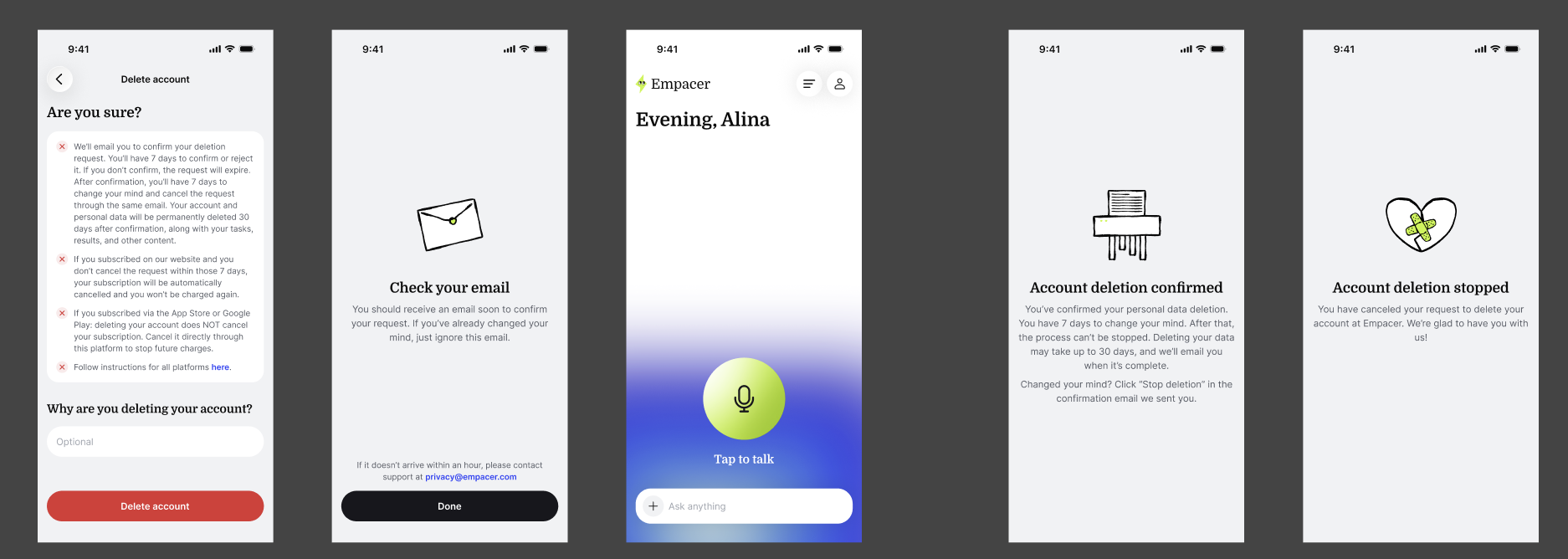
Our team will process your request and confirm once the deletion is complete.
Important note! You can delete individual files and disconnect integrations yourself at any time in Empacer without deleting your account. Other personal data, such as card details, cannot be deleted separately. When you request to delete your account, all your information in Empacer will be deleted, including personal data, login details, files, integrations, and any other data we hold.
How to delete files?
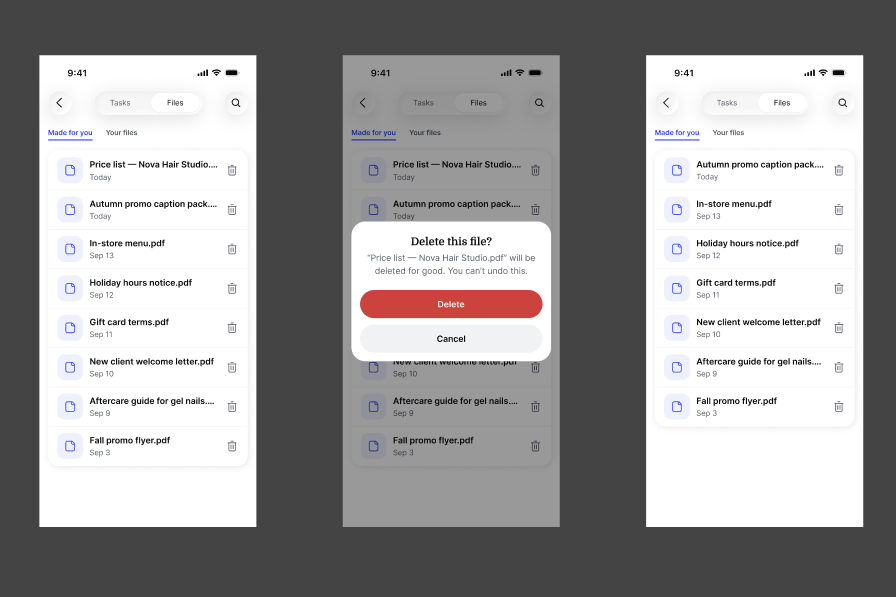
You can delete individual files without deleting your account:
Open the Files tab.
Choose Made for you (files Empacer created for you) or Your files (files you uploaded).
Tap the trash icon next to the file you want to remove.
Tap Delete to confirm.
Deleted files are removed permanently and can’t be restored. Files you uploaded will no longer be used by Empacer in its work.
How to disconnect an integration?
You can disconnect any connected app, such as Instagram, Twilio SMS, or Google Calendar, at any time:
Go to the Connected screen.
Find the app in your list of connected apps.
Tap Disconnect next to it.
Tap Disconnect again to confirm.
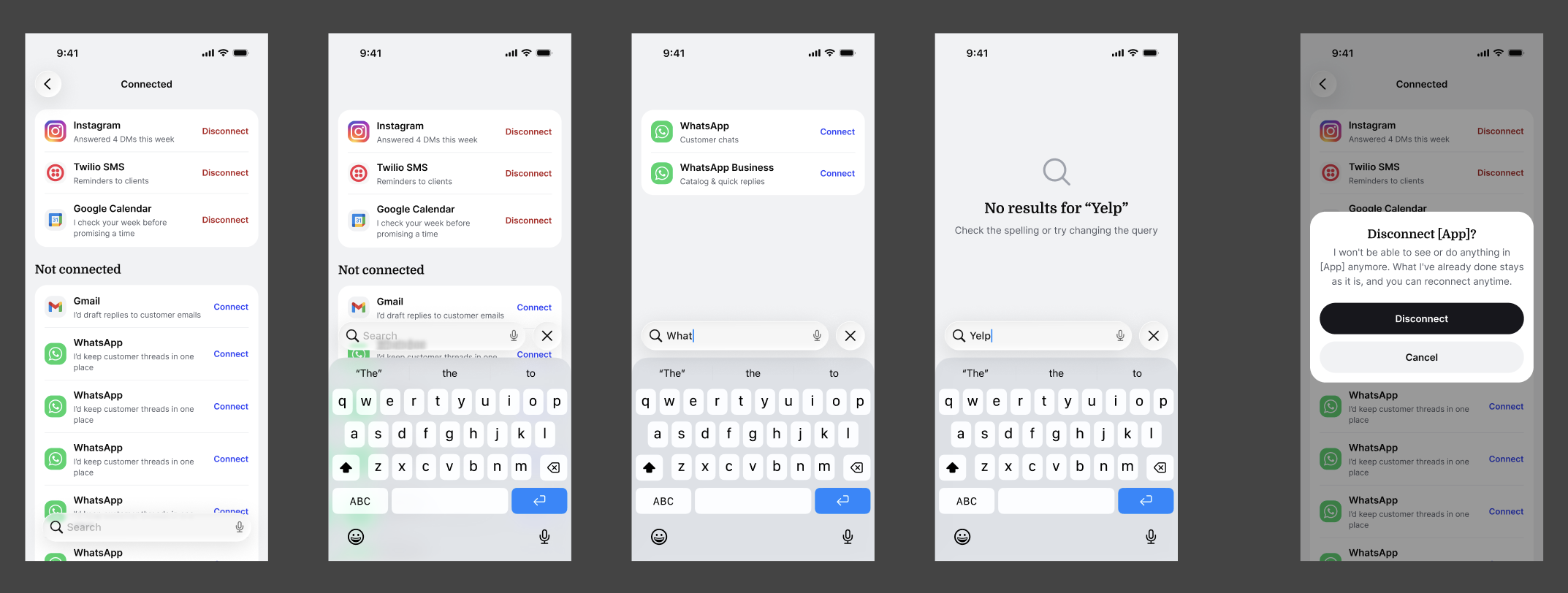
Once disconnected, Empacer won’t be able to see or do anything in that app. Anything already done stays as it is, and you can reconnect the app at any time.
How to unsubscribe from the mailing list?
If you only wish to stop receiving newsletters or promotional offers without deleting your account, you can simply click the "Unsubscribe" link located at the bottom of any email we’ve sent you.
Need further clarification?
If you have any further questions regarding our services or security, please reach out to us at support@empacer.com or by submitting a ticket to the Support Center.